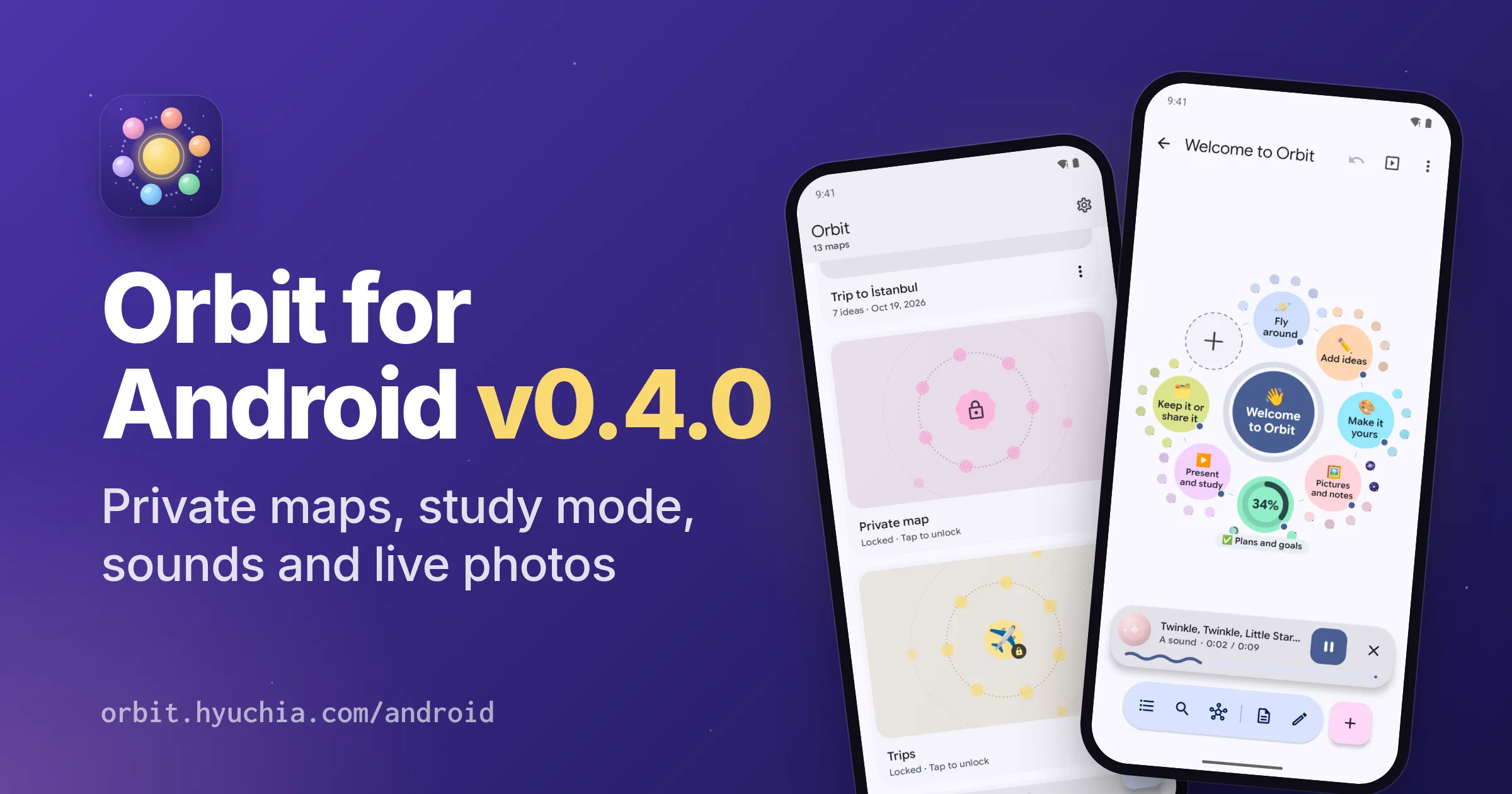
Orbit for Android v0.4.0
October 31, 2026
Hyuchia
Download Link: orbit-0.4.0.apk · Google Play: Get it on Google Play · More: orbit.hyuchia.com/android
v0.4.0 lets you keep a map to yourself, locked with your fingerprint, face or screen lock, and turns any branch of a map into flashcards that come back when they’re due. Ideas can hold voice memos and sounds, live photos play their motion, GIFs move, and on a tablet or in split screen you can drag text, pictures and maps in from other apps. Version history says when, why and what changed, and sharing a map says what goes with it. It installs over v0.3.0 and keeps your maps, and it needs Android 10 or later. Orbit is still free, with no account, no ads and no tracking. Here’s what’s new and how to use it.
💜 Support Orbit#
Orbit is free and open source, with no ads and nothing locked away. If it’s useful to you, you can help it grow: your support pays for the time that goes into new features and fixes.
- ❤️ GitHub Sponsors
- 💸 Wise
- 🧡 Patreon
- ☕ Ko-fi
📰 Release Change Log#
🌟 New Features#
🔒 Private Maps
Keep a map to yourself. A private map opens only with your phone’s own fingerprint, face or screen lock, through Android’s own prompt, so Orbit never sees any of them, and one unlock opens every private map until Orbit locks them again.
To make a map private, open its menu, from its card on Home or while it’s open, and turn on Private. Locked, its card keeps its place, with an empty orbit and a lock where its picture was and “Private map” for its name: no title, tags or progress, and Home’s search leaves it out. Each locked map’s orbit has colors of its own, so you can still tell them apart. Cover while locked, beside the Private switch, gives it an emoji and a short name to show instead, such as “✈️ Trips”. Tap a locked card to unlock it.
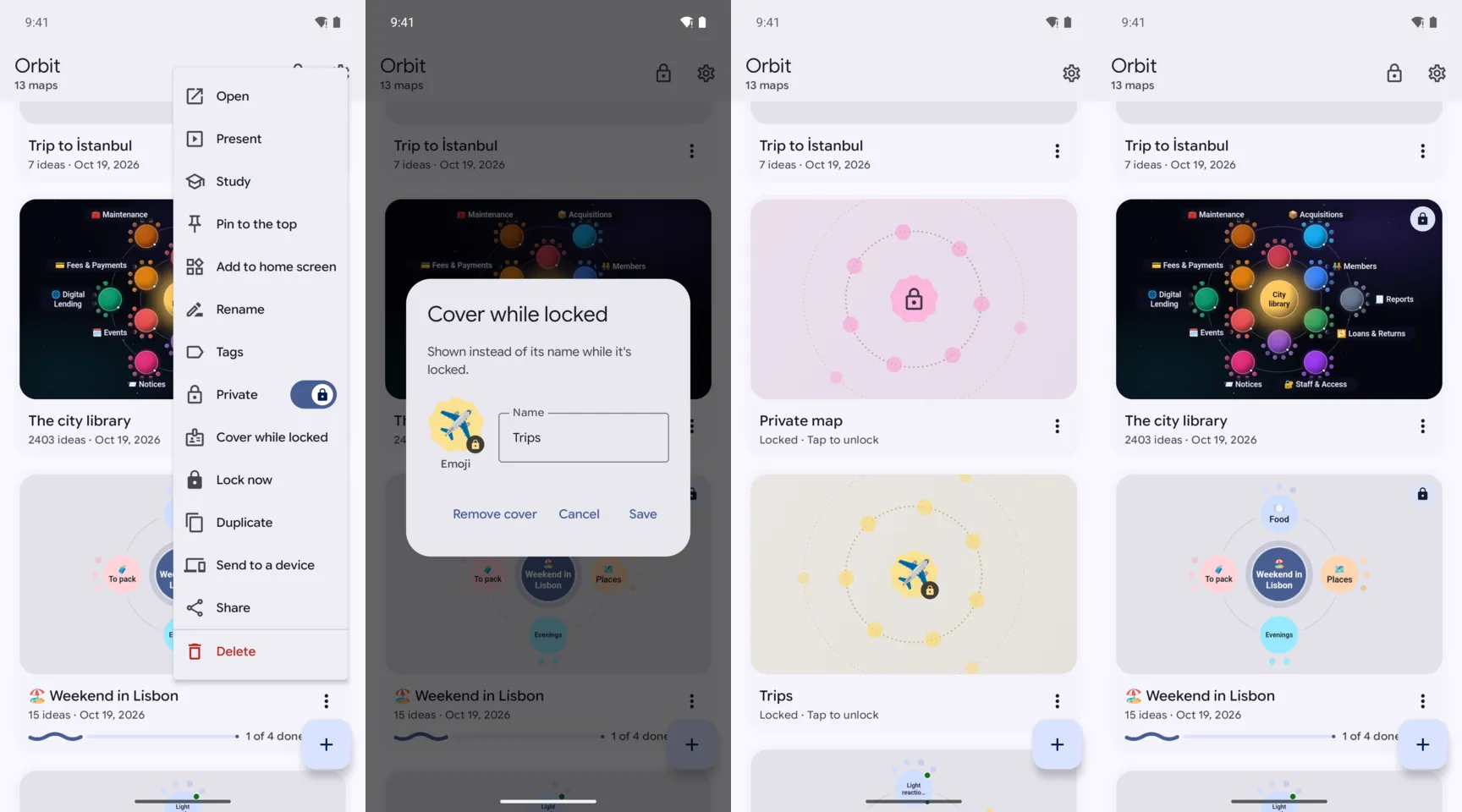
Orbit locks them again when it’s been off screen for a minute (Settings can make that right away, 5 or 15 minutes), when the screen turns off, and when you tap the lock in Home’s bar, Lock now in a private map’s menu, or Ctrl+L on a keyboard. Settings can also keep locked maps off Home altogether. While something private is on screen, Recents shows no picture of Orbit, and a map that locks while it’s open is covered whole.
Private maps are locked in Orbit, not encrypted: their files stay plain markdown, so a sync app or a backup reads them like any other map, and Settings says so. A private map you send, share or sync arrives as an ordinary map. Making a map private needs a screen lock on the phone, and Orbit asks you to set one first if there’s none.
🧠 Study Mode
Turn a map into flashcards. Every idea in a branch that has ideas or a note of its own becomes a card: Orbit flies to it with its ideas hidden, their places faint in its orbit, and asks you to recall what’s there. Tap the map, Space or Show, and they grow out of the card into their places, with its note.
To study, fly into the branch you want and pick Study in the map’s menu, or pick Study in a map’s menu on Home to study all of it. Answer Again or Knew it, with the buttons, the keys 1 and 2, or a swipe toward the button. Each button says when the card comes back: Again brings it back a few cards later, and Knew it sends it on to its next box, 1, 3, 7, 16, 35, 80 and then 180 days later. A summary closes the session, and the map’s card on Home says how many cards are due (“5 to study”).
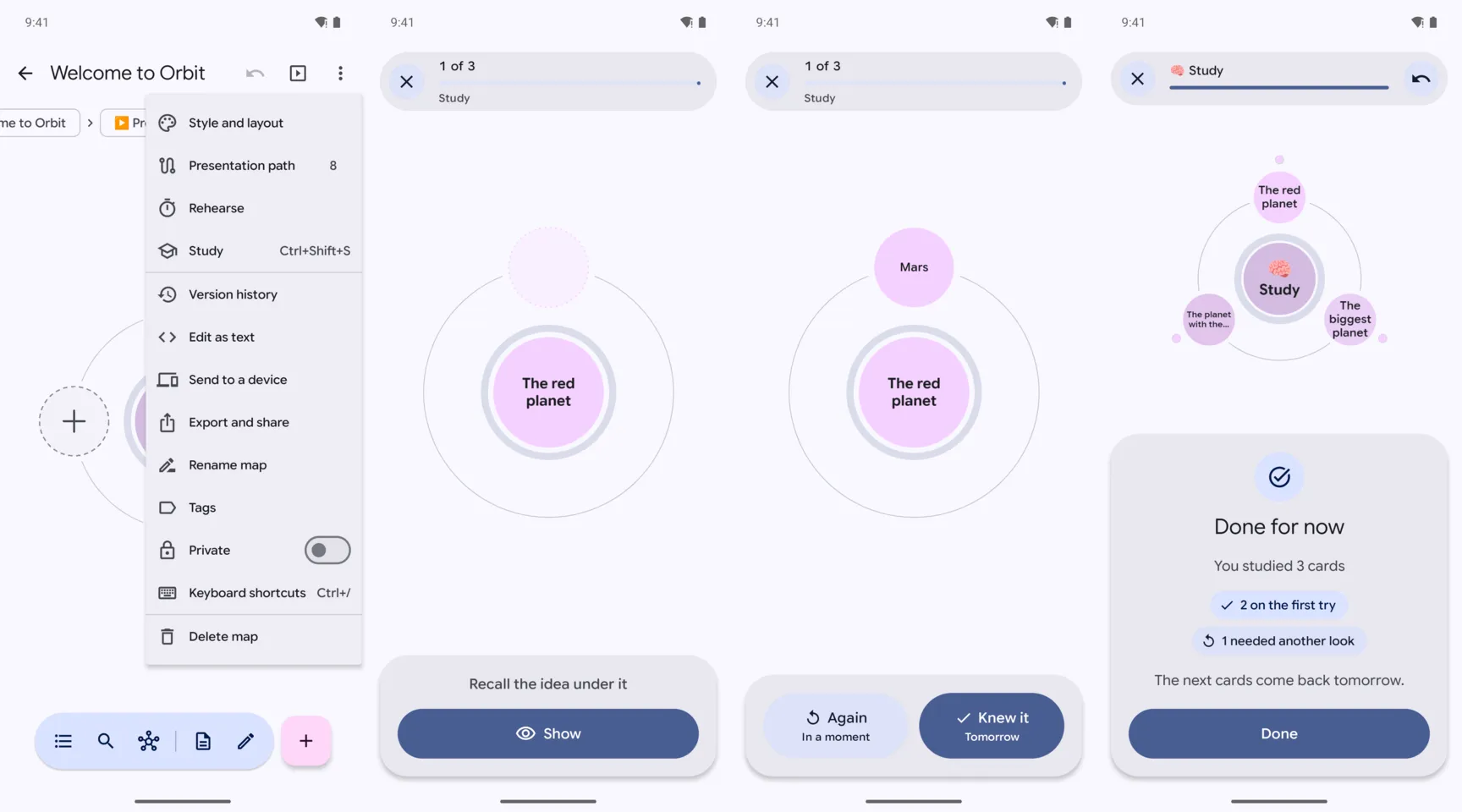
The cards due come first, then up to 20 new ones a day (5, 10, 30 or 50 in Settings), and Undo takes back the last answer. How the cards are going is kept in the map’s details, never in its text, and with your maps in a synced folder, studying on the phone counts on the tablet too. A revealed card whose idea has a sound offers to play it: a word said aloud, for a language. The new welcome map has a tiny deck to try.
🎙️ Voice Memos And Sounds
An idea can hold a sound now: a voice memo you record right there, a sound file from your phone, or a sound’s web address. Its planet wears a small sound wave.
To record one, long-press an idea and pick Record a voice memo, or open its editor with the pencil. A recorder comes up under the map: tap the big button to record, pause and go on, then Finish to listen back, and Save it or Record again. The memo joins the idea with Undo. Orbit only asks for the microphone, and only uses it, while you record. The editor also takes a sound file (MP3, M4A, AAC, Ogg, Opus, WAV, FLAC or WebM), with a caption.
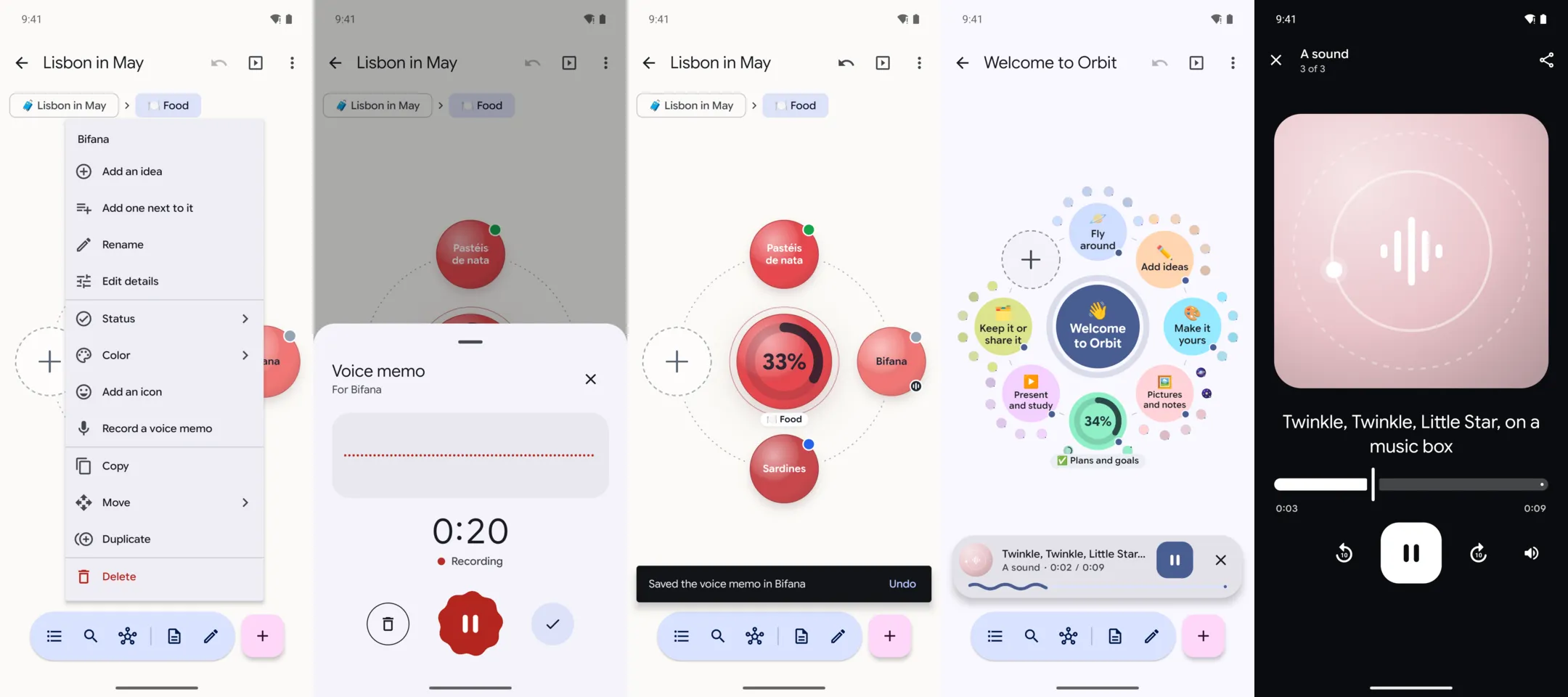
To play a sound, tap its button in the toolbar, or play it from the idea’s details. A small player comes up over the map, and the sound keeps playing as you fly around. Tap the player to open it full screen, with ten seconds back and on, a slider and share. It pauses when you leave Orbit, when another app plays, or when headphones come out. When you present, a button plays the idea’s sound from your phone.
📸 Live Photos And GIFs
Live photos play their motion now, from Android phones and iPhones alike, and GIFs move. A live photo comes in wherever a picture does: from the photo picker in an idea’s editor, by pasting, or by dropping it on the map. Orbit reads the motion inside Google’s Motion Photos and Samsung’s, Huawei’s and Honor’s pictures, joins an iPhone’s still and its movie, and keeps each as a picture with its motion beside it.
Full screen, a live photo plays its motion once, without sound, as it comes up, and settles back on the picture. Hold it, or its Live mark, to play it again with its sound. On the map it’s the still, and with Android’s animations off it plays only when you ask.
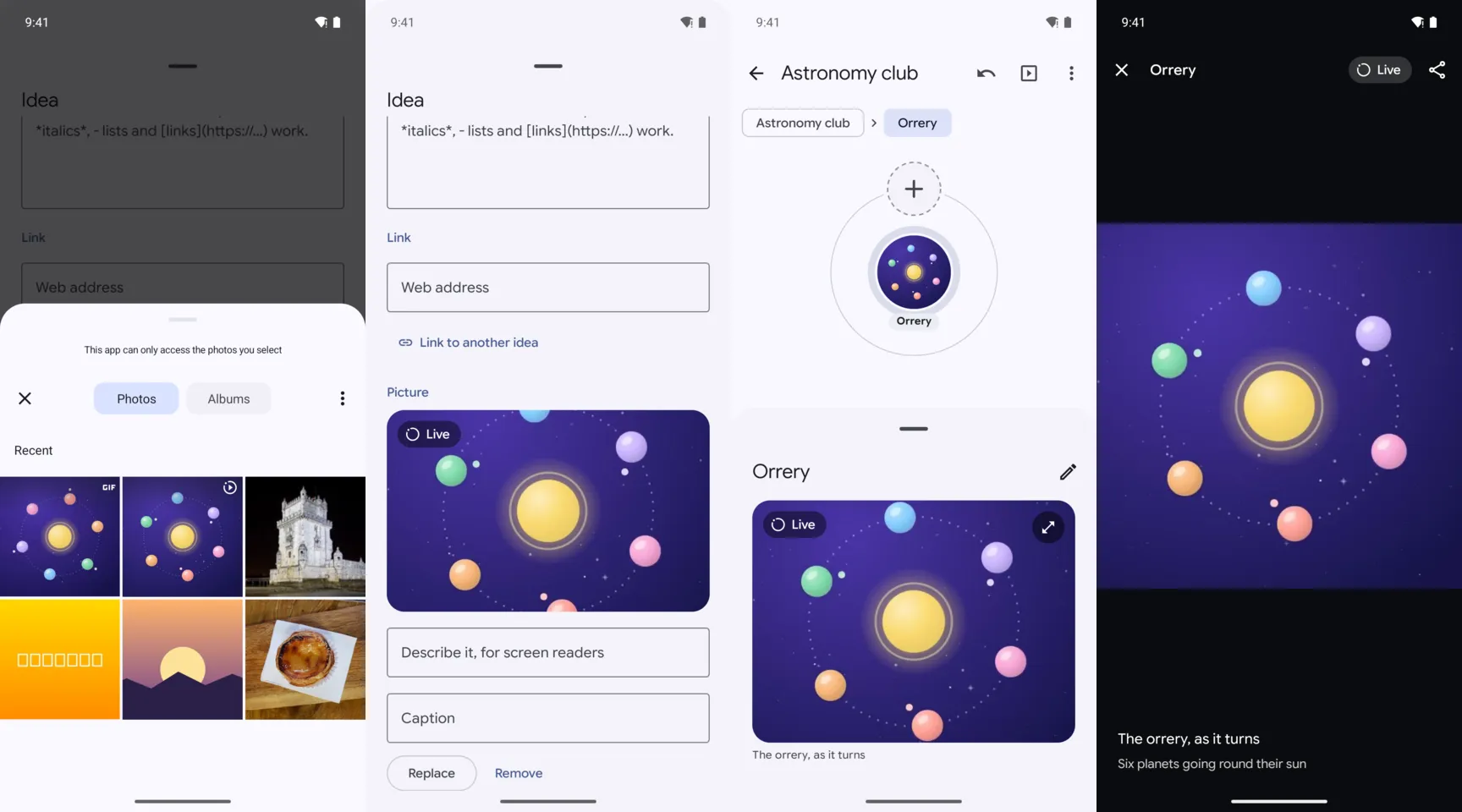
A live photo playing once as it opens full screen, then held to play again.
Animated GIFs and WebPs play, looping, full screen and in an idea’s details, and the bar at the top pauses them. On the map, a planet shows their first frame.
🤝 Drag And Drop With Other Apps
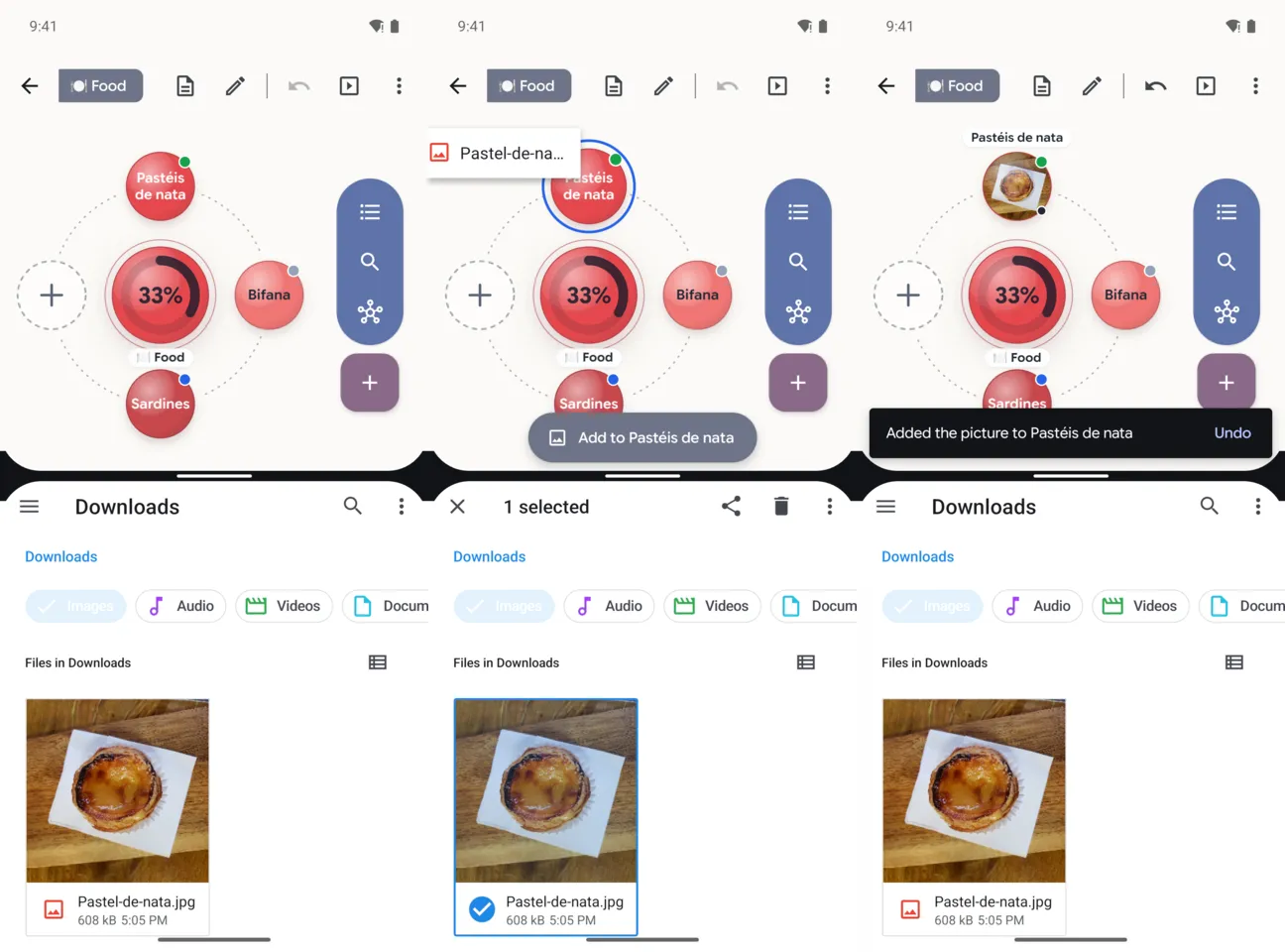
On a tablet, a Chromebook, or a phone in split screen, drag text, web addresses, pictures, videos, sounds and map files from another app onto a map. The idea under your finger lights up, and a pill says what letting go will do (“Add to Pastéis de nata”); over empty space, it’s the idea in focus. Text becomes ideas under it, as pasting makes them, one picture, video or sound becomes the idea’s, and several become ideas of their own. Map files dropped on your list of maps come in as new maps, several at once. Each drop comes with one Undo.
Ideas go the other way too: lift an idea on the map, or hold a row of the outline, and drag it out of Orbit’s window into another app, which gets it as an outline.
🕰️ Version History That Explains Itself
Version history, in a map’s menu, lists the map as it was, under its days. Each version says when (“1 minute ago”), why it was kept (“Before you removed “🎨 Make it yours” and 9 ideas under it”, “When you opened it”), and what changed from the one before: ideas added, removed, renamed and moved, by name when they’re few.
Choose one, and it shows on the map to look around in. Nothing changes it there, and Restore makes it the map again, with Undo. The map as it was joins the history too, so restoring never loses anything.
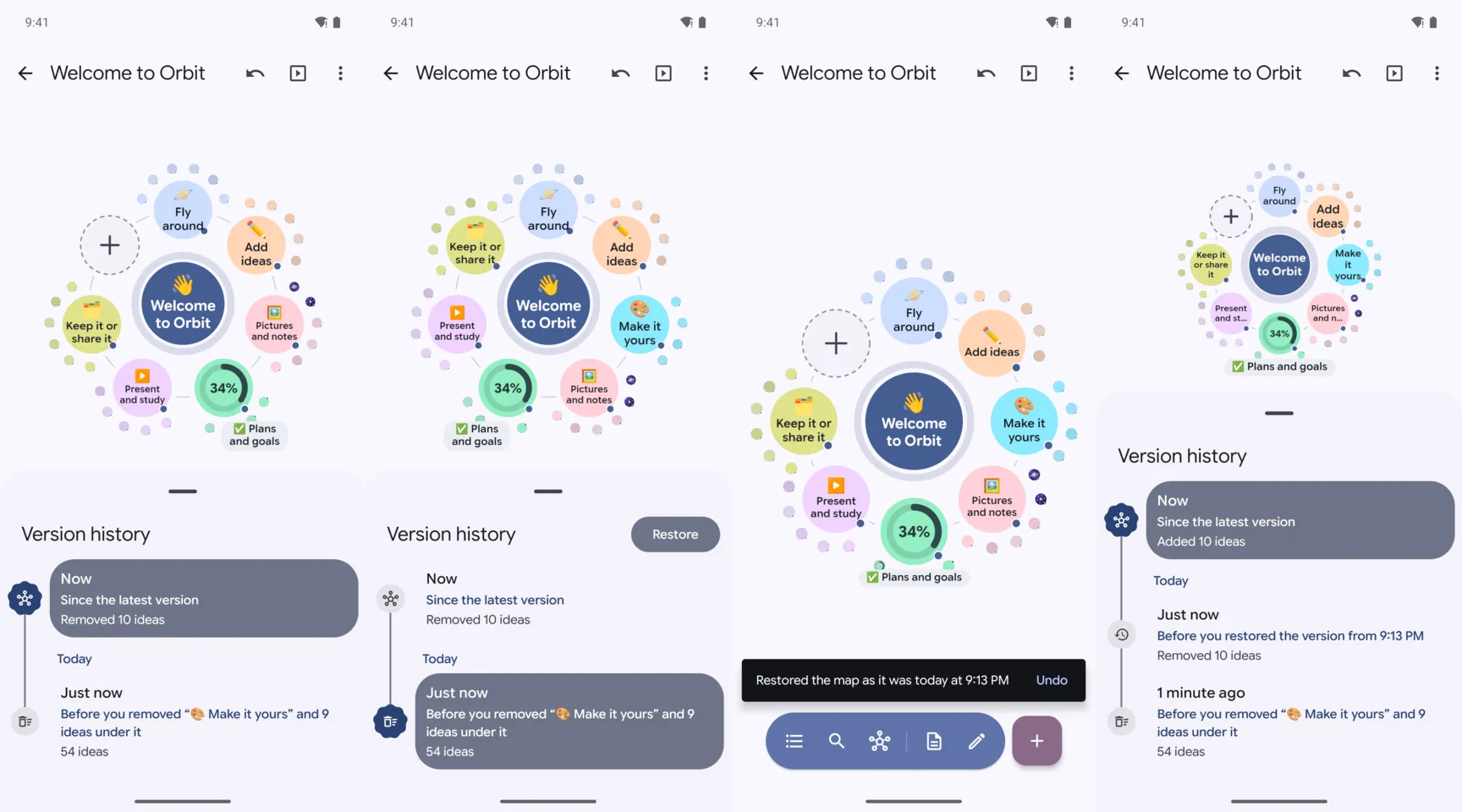
Orbit keeps a version as each visit begins, every ten minutes of editing, and before each big change, such as removing an idea with ideas under it, editing the text by hand, or a version arriving from another device. It thins them out as they age, and the newest 20 always stay.
📤 Sharing That Says What Goes
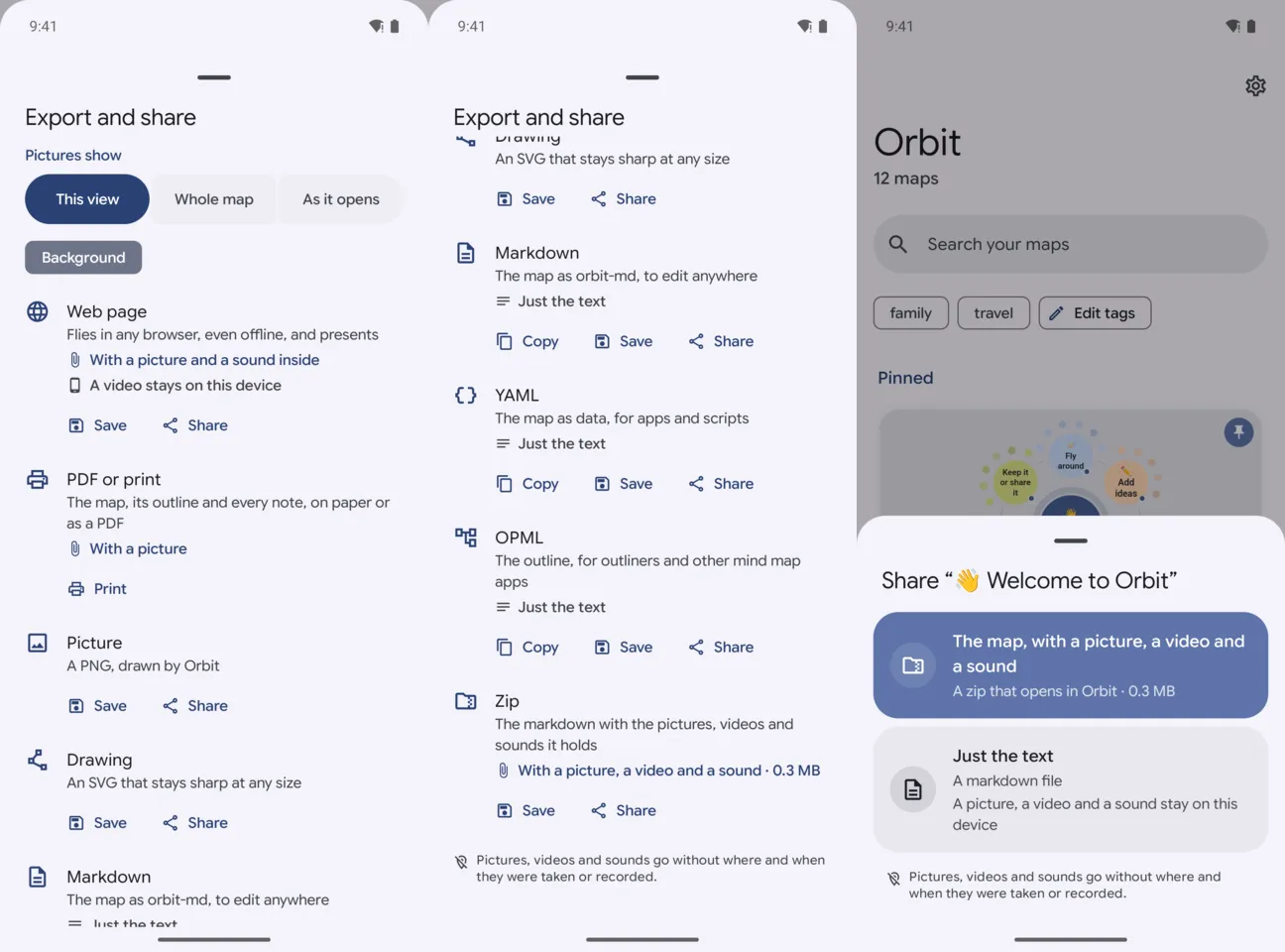
Every way a map leaves your phone now says what goes with it, counted: “With a picture, a video and a sound · 0.3 MB” for a zip, what a web page carries and what stays on your phone, the pictures a PDF prints, and “Just the text” for markdown, YAML and OPML. Sharing a map from its card on Home says the same before Android’s share sheet opens, and offers just its text instead.
Videos and sounds now leave without what their files say beyond what they show or play, as pictures already did: where and when they were taken or recorded, on what, and a sound’s tags. That holds for shared zips, maps sent to another device, web pages, PDFs and prints, and the browsers you present in. When Orbit can’t clean a file, such as a video cut short or a file it doesn’t recognize, the file stays on your phone unless you choose to send it as it is: Orbit asks once, naming the files. The files in your own maps stay exactly as they are, and so does Export all, your backup.
⚡ Improvements#
- Names that fit: a long word breaks with a hyphen where English or Spanish breaks it (“Pho-to-syn-the-sis”), instead of shrinking the name until it’s hard to read, and a name that doesn’t fit a small planet shows on a pill beside it.
- A new welcome map: new installs start with a map that shows Orbit off, with a picture, a video, a sound, to-dos, a goal, a tiny deck to study and a path for a quick tour. Updating keeps the welcome map you have: to get the new one, delete yours (it waits in the trash for 30 days), then open The welcome map in Settings, About Orbit.
- Text from other apps: text shared from another app, or a
.txtfile, becomes a map with its first line in the middle and the other lines around it, nested as they’re indented, and a title shared with the text, such as an article’s, names the map. Adding a shared list to a map keeps its branches and its to-dos. - Home’s search says how many maps match, and screen readers hear it as it changes.
- Talking ideas onto the map listens in Orbit’s language, which Settings can make other than the phone’s.
- Undo: on a phone, Redo shows in the top bar once something has been undone, and the message a big change leaves has Undo too, and swipes away.
- Keyboards: Ctrl+Y redoes, Ctrl+Shift+S studies, Ctrl+Shift+N starts a map from a template, Ctrl+F searches your maps, and Keyboard shortcuts in a map’s menu lists what the screen has.
- Videos: their controls step aside while a video plays, as a presentation’s do.
- Presenting: on a phone, where the audience is watching gets a line of its own under the presenter’s buttons, and a live photo plays its motion once on the audience’s screens, with “Play the live photo again” on the phone.
- Exports: a web page carries live photos’ motions and sounds, up to 25 MB of each, and a PDF lists each sound by its caption.
- Folder sync: Settings lists the devices that use the folder, with their versions and what an older one can’t open, and Home asks first before more than three maps follow their files out of the folder at once. HEIC pictures that arrive through the folder or a zip show on the map.
- Widgets take Orbit’s colors, with a rounded frame on every Android and a + the size of a finger.
🐛 Bug Fixes#
- Tablets on their side: opening the Style panel beside the map with Drift on no longer closes the app.
- Turning a tablet while Home’s search field has focus no longer closes the app.
- A full phone: saving no longer closes the app and loses the edit. Orbit keeps it, says over the map that the latest changes aren’t saved yet, with a way to the phone’s storage settings, tries again by itself, and starts even on a full disk.
- Leaving a map with the arrow at the top keeps what you were typing, as Back did.
- Folder sync: a map the folder’s app fails on no longer stops every map after it from syncing: it’s tried again by the next sync while the others go on, and a problem that lasts shows on Home, with Try again.
- Light or dark chosen apart from the phone’s holds on every screen, with no flash of the other between screens, and on Android 13 and later in the splash too.
- Presenting with TalkBack: the controls stay on screen, where they used to hide after a moment, beyond a screen reader’s reach.
📦 Misc#
- Built on Orbit v0.4.0, the library that draws the maps.
- The privacy policy says what Orbit uses the microphone for, only while you record a memo, and what leaves with a map.
How To Update#
- From the website or GitHub: Orbit tells you about the new version within a day. Install it over
v0.3.0; your maps stay. It needs Android 10 or later. - Google Play: Orbit is on Google Play now, and Play keeps it up to date. F-Droid and AppGallery are coming soon.
- Sending maps:
v0.4.0andv0.3.0send maps to each other, and before a map goes, the dialog with the code says what won’t open on the older one:v0.3.0has no sounds, so it keeps voice memos without playing them, and other sound files stay on this phone. Orbitv0.2.0and earlier can’t send maps tov0.4.0: each says which device to update. - Several devices: a live photo’s motion goes to earlier versions with its picture, but
v0.3.0drops it if you change the picture’s caption or description there.
To check the download, its SHA-256 is 106f8eb9206b13140b746d8d47f5fa6f11a627aea3a54d65cf89c4ed13b6c248, and it’s signed with the certificate b4fd505f255c406cd205a6c403898e2069968339ad40269d5c22be79d561a107. Both are on the release on GitHub too.